LMStudio
The simplest way to get up and running with local AI is LMStudio. It's a free, graphical app that works on Windows, Mac, and Linux, and it handles model downloading, loading, and chatting all in one place. No command line required.
What You Need:
Before you install anything, check your hardware. The most important spec is VRAM (video RAM) — the memory on your graphics card. This determines what size model you can run.
Minimum: 4 GB VRAM will work for small models (3–4 billion parameters). It's enough to get started, but you'll be limited in what you can run.
Recommended: 8 GB or more. This opens up 7–10 billion parameter models, which are where things start getting genuinely useful.
Ideal: 12 GB+. You can run 10–13 billion parameter models comfortably and still have room for context.
If you don't know your VRAM:
- Windows: Right-click the taskbar → Task Manager → Performance tab → GPU 0 → look for “Dedicated GPU Memory”
- Mac: Apple menu → About This Mac → Memory (all Macs with Apple Silicon share memory between CPU and GPU)
- Linux: Run
nvidia-smiin a terminal
How VRAM maps to model size: As a rough rule, 1 GB of VRAM ≈ 1 billion parameters at 8-bit quantization. 8-bit and 16-bit are the most common formats, but you'll also see 4-bit (smaller but slightly less accurate) and even 2-bit models for very constrained hardware.
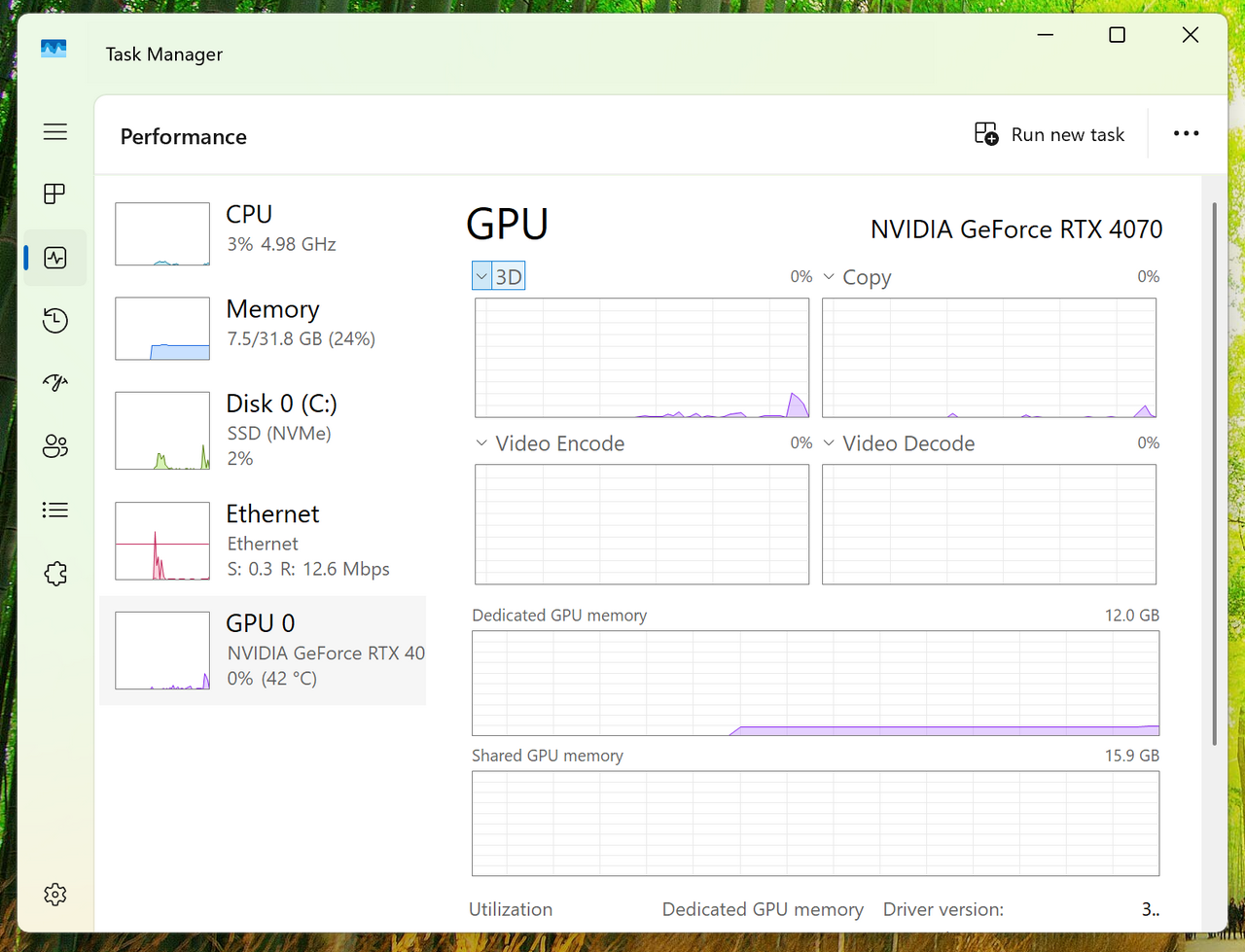
My System Specs
Here's what I'm running:
- CPU: Intel Core i9-14900KF
- RAM: 32 GB
- GPU: NVIDIA GeForce RTX 4070 (12 GB VRAM)
- Storage: 2 TB NVMe SSD
With 12 GB of VRAM, I can technically fit a 12B model at 8-bit. But you also need room for the desktop, the KV cache, and context windows — so in practice, 8–10B models are where I run best.
Installation
Download LMStudio from lmstudio.ai/download
Make sure you get the right version for your system (x86 Windows for most PCs, but they also support Windows on ARM, Linux, and Mac)
Run the installer and follow the prompts
Launch LMStudio
Your First Model
When you first open LMStudio, it will prompt you to download a model. It suggests one based on your hardware — go with it if you want a quick start, or skip ahead and pick something else.
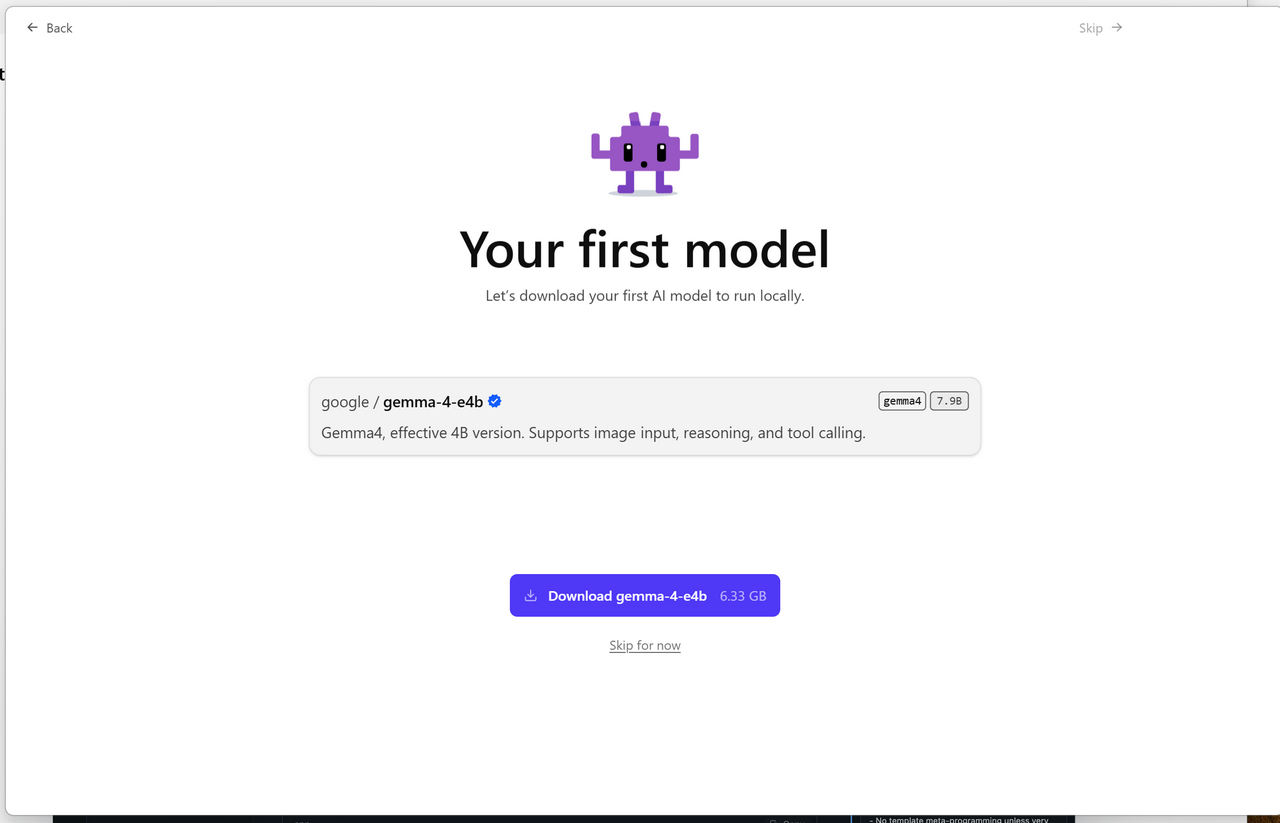
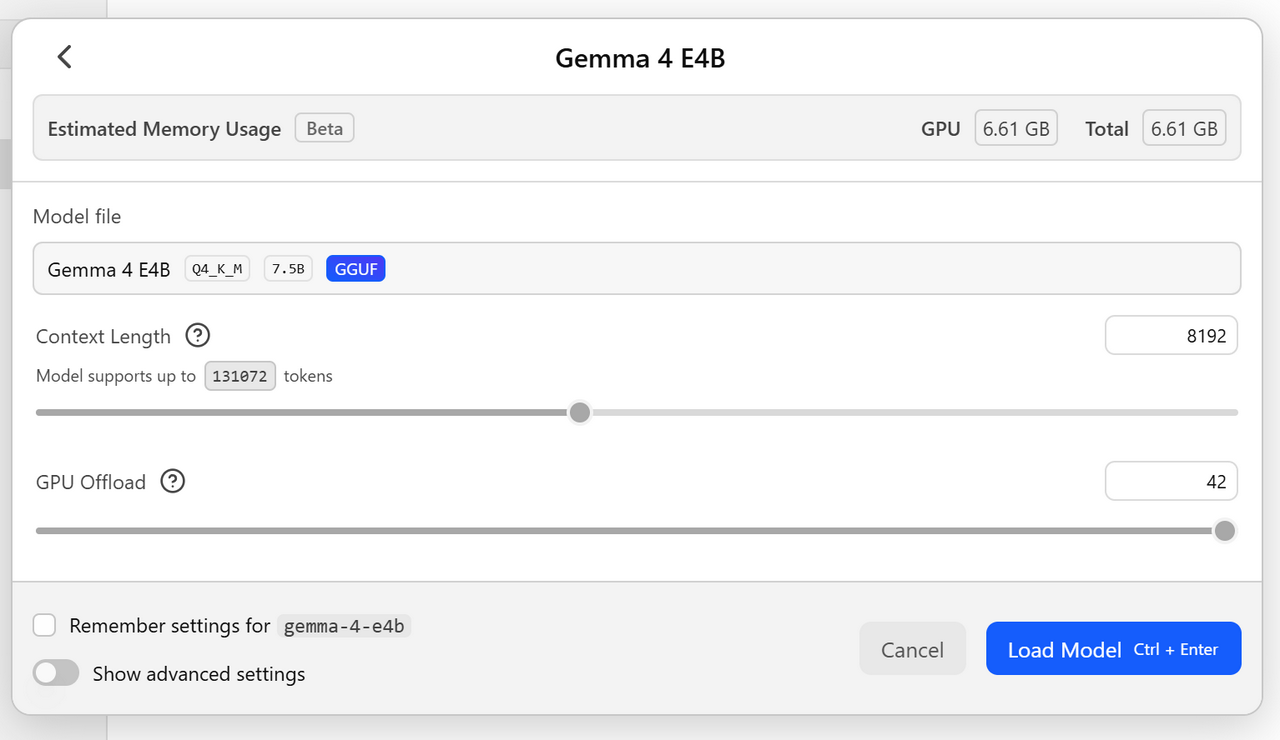
On my system, it recommended Gemma 4B. That's a small model, so there's probably room for something bigger — but it's a safe choice to verify everything works. The download might take a few minutes depending on your connection.
Once it finishes, LMStudio opens to the model screen. Click Load to load the model into memory. When it's ready, you'll see a green indicator.
Click Chat in the sidebar to start talking to it.
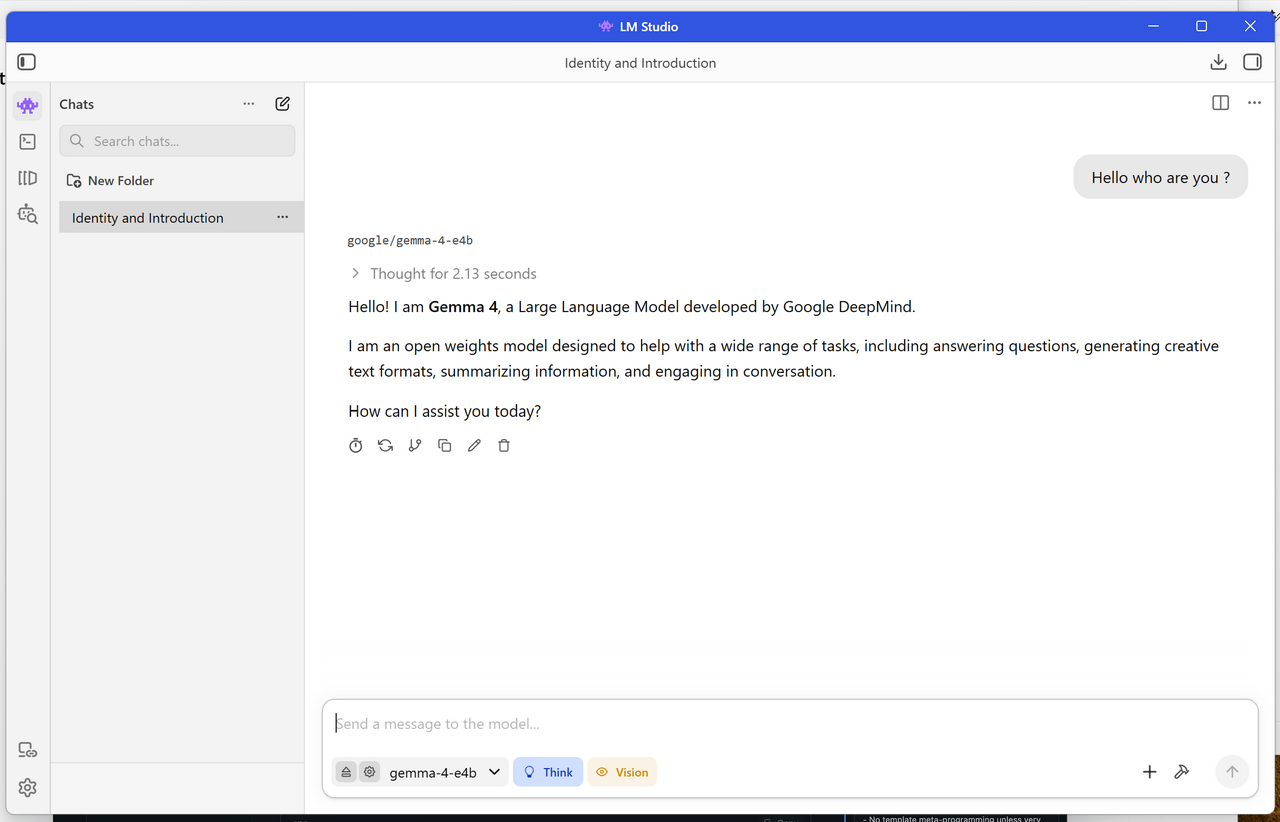
That's it. You now have a local AI assistant running on your own machine. No internet required, no token costs, no data leaving your computer.
Exploring Beyond the Default
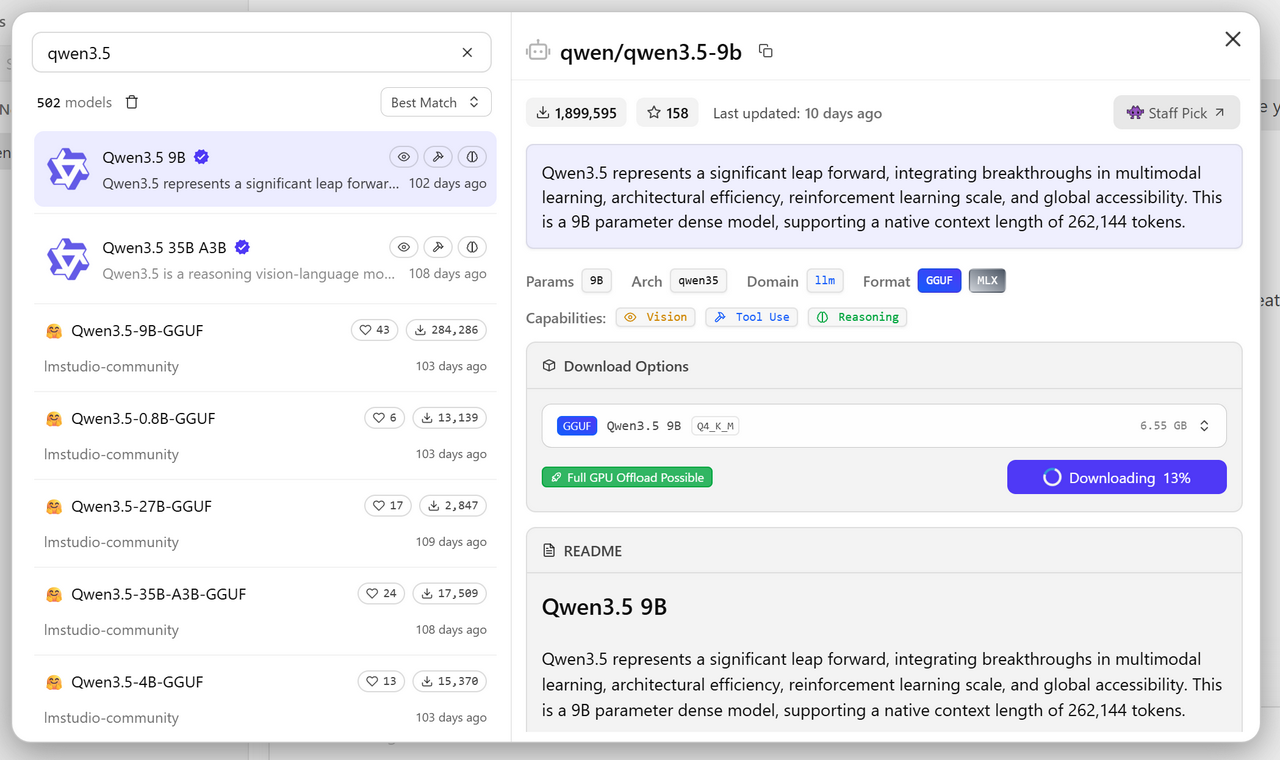
The default model is just a starting point. Click the download icon in the sidebar to browse the model library. You can search for any model that's available on HuggingFace — LMStudio will find it and download it for you.
On my system, I downloaded Qwen 3.5 9B, which is probably as large as I can run comfortably. LMStudio's model browser shows you VRAM estimates for each model, which makes it easy to see what will fit.
A Note on Capability
Open-source local models have come a long way, but they still generally lag behind the biggest proprietary models (GPT-4, Claude, etc.) in raw capability. That said, for everyday tasks — writing, coding help, summarizing, brainstorming — they're more than good enough. And they're improving rapidly.
If you want to go deeper, LMStudio also has a developer mode that lets you expose your local model as an API server, which opens up integrations with VS Code, Obsidian, and other tools.